


How Tag4Pay Works — Simple. Fast. Everywhere.
The Tag4Pay Flow — Step by Step
Whether you run Prepaid or Pay-at-end, the path is the same: assign, tap, manage, settle.
Ready to see it in motion? The next steps map the guest experience end to end—quick check-in, effortless taps, and easy oversight. Frictionless by design: offline-ready, multicurrency, multilingual.
No stress, no cash, built to go anywhere.
Fast, no-stress setup – ADMIN side
In just a few minutes, name the station/event, enable NFC, and pick your flow: Prepaid (load funds onto the wristband) or Pay-at-end (settle everything at checkout).
Choose where to save data under Storage (internal memory or USB/SD). The app captures only essentials, stores locally when offline, and syncs to the dashboard as soon as connectivity returns.
A quick wristband read test confirms you’re ready to take payments
Setup done. Cashless on. Here’s the journey your guests experience, end to end.
pre-paid solution
At check-in, a fixed amount is loaded onto the wristband. Each tap during the event deducts the price and the updated balance is shown immediately on the device. Additional funds can be added at any time in the same quick flow. Transactions work offline and sync when connectivity returns. End of event: no checkout required—an optional refund of any remaining balance follows the organizer’s policy.
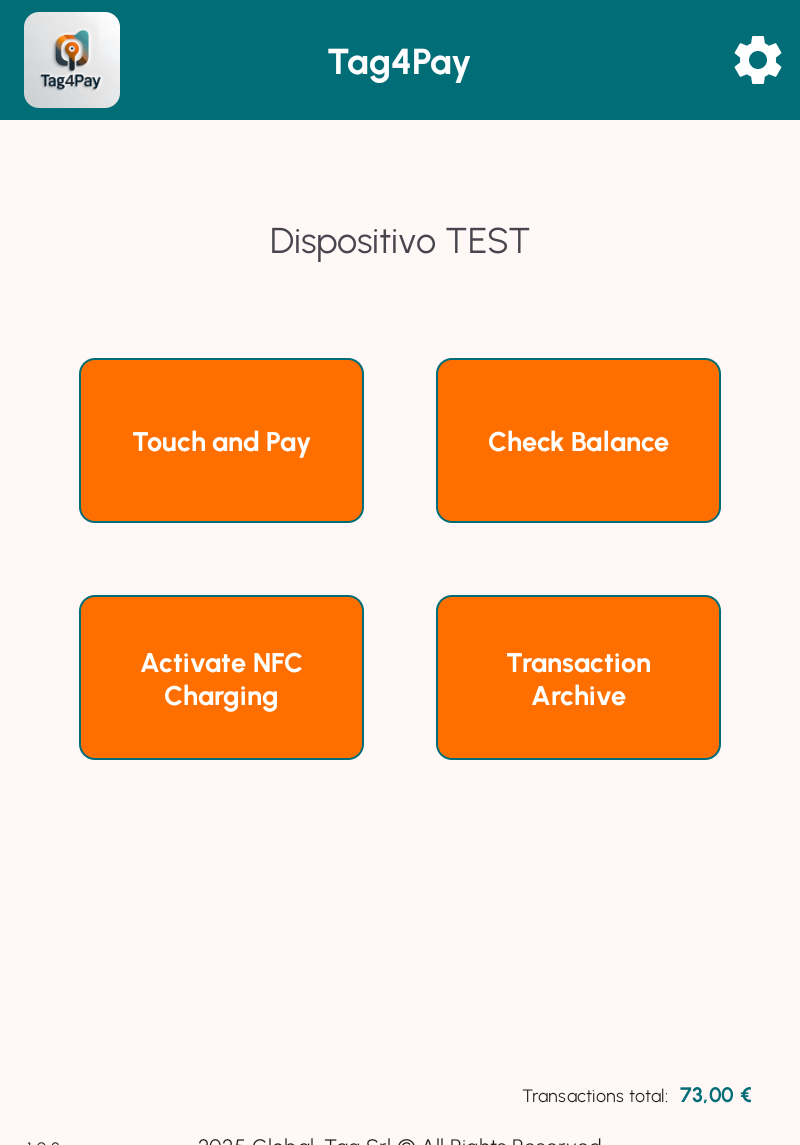
Check-in & Add Funds – ADMIN & GUEST side
Link the wristband and load the initial amount; top-ups anytime.
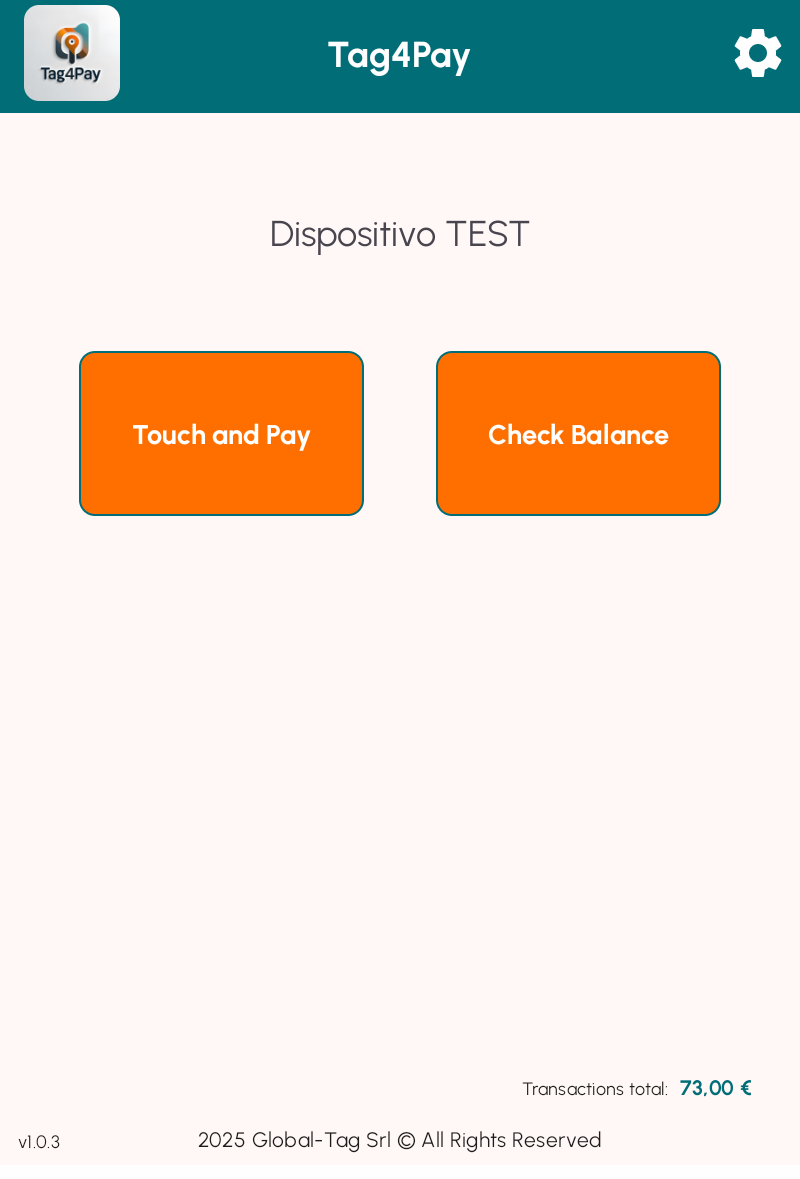
At check-in, staff scans the wristband via NFC, assigns it to the guest and the station/event, then loads an initial amount in a couple of taps (choose from preset values or enter a custom one).
The credit is applied instantly and the guest can see the available balance right away on the device.
If they come back later, a top-up takes seconds — same flow, no extra forms.
Every operation is saved locally on the handheld (works even offline) and is synced to the dashboard as soon as connectivity is available for oversight and reporting.
From the same screen you also have the other actions you’ll use next: Tap & Pay, Check Balance, and Transaction Archive (export/backup).
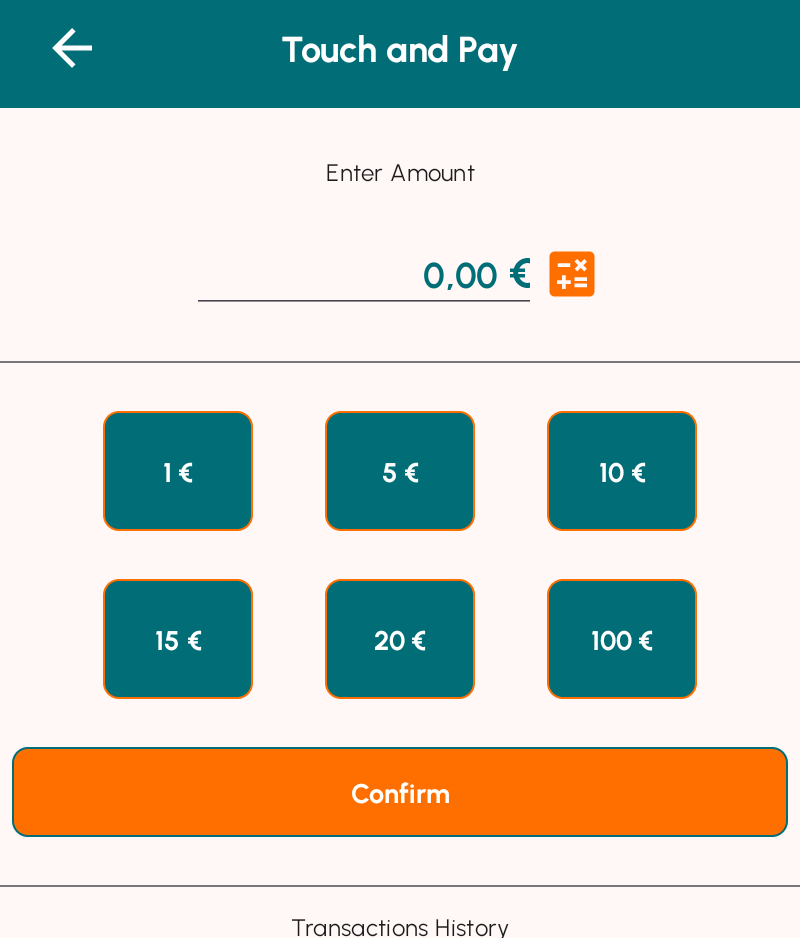
Tap & Pay – Admin Side
Enter, confirm, tap: instant charge to the wristband.
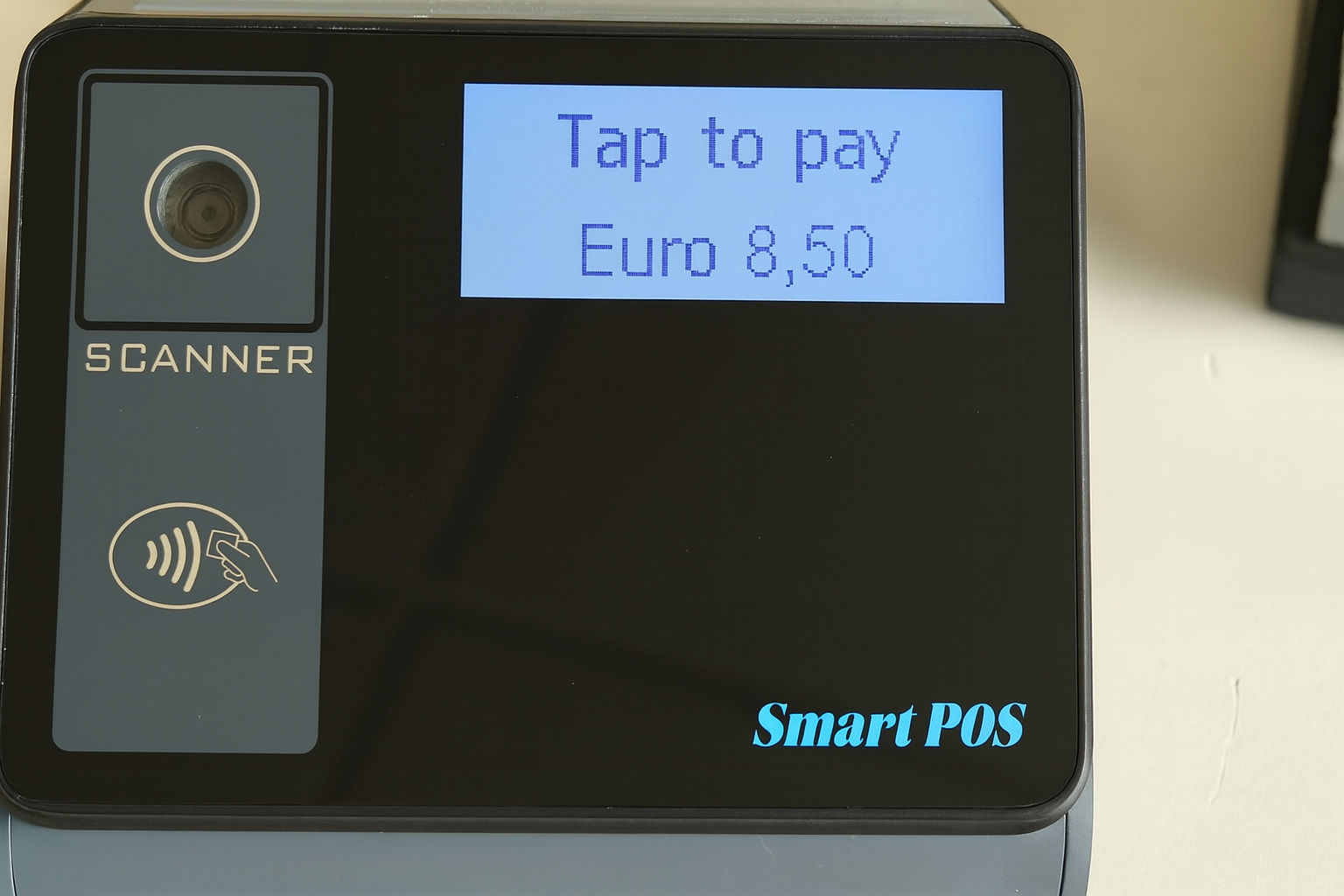
From the Tap & Pay screen you set the amount in seconds: use the preset values (€1/5/10/15/20/30) or enter a custom figure. Tap Confirm and the device switches to NFC listening; when the wristband is presented, Tag4Pay validates the tag, deducts the amount, and records the transaction locally, so it works even without a connection. Immediately after, the screen shows the amount paid and the guest’s updated balance. If funds are insufficient, a clear message appears—perform a quick top-up and tap again. The result is faster lines, no cash handling, and instant control.
Tap & Pay – Guest Side
Enter, confirm, tap: instant charge to the wristband.
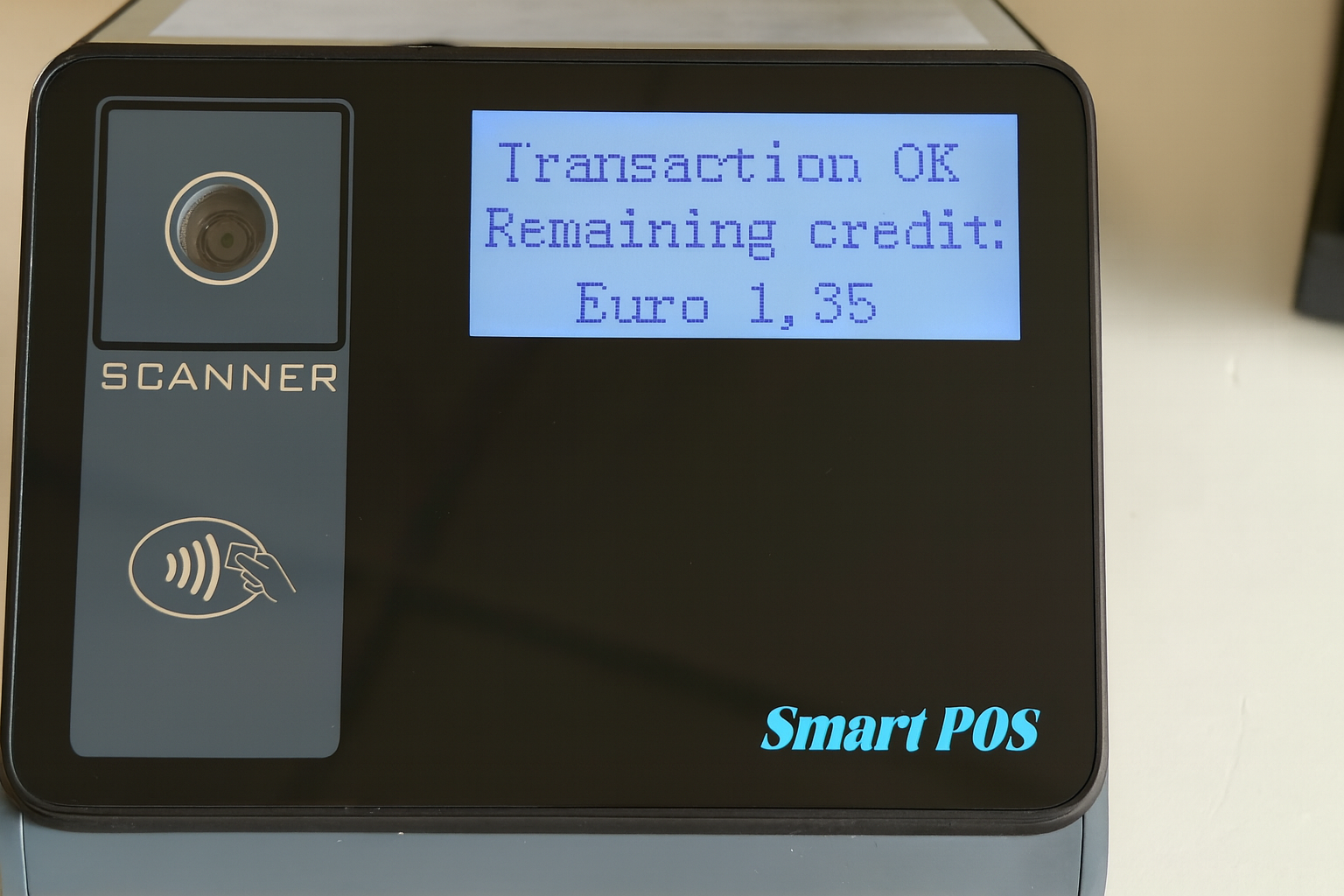
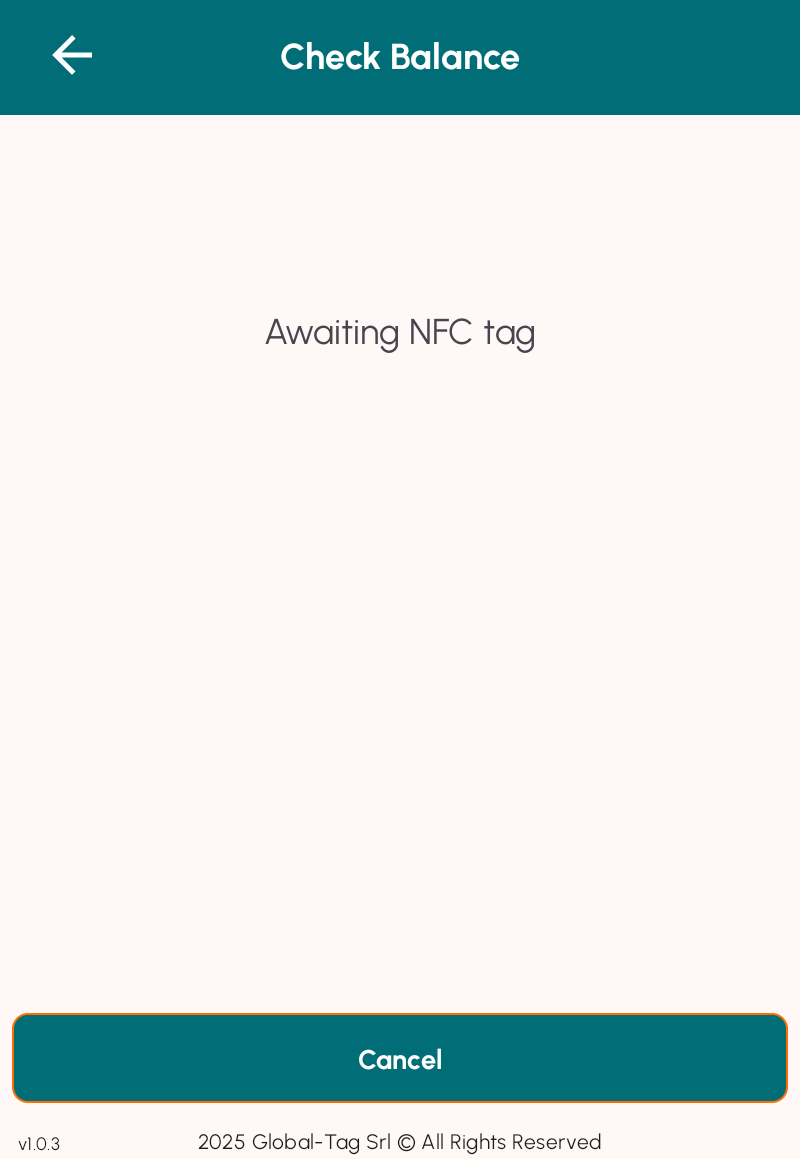
Control Credit – ADMIN & GUEST Side
One tap to know what’s left: transparent and quick.
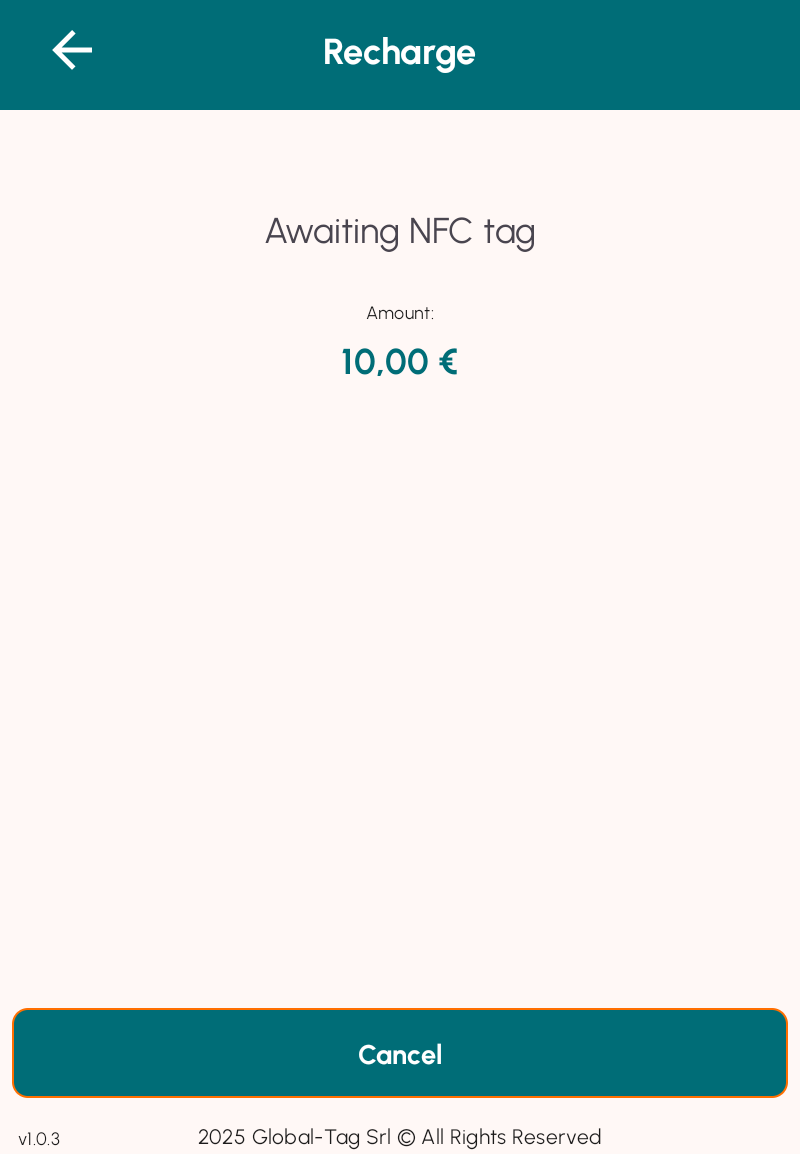
Recharge Credit – ADMIN & GUEST Side
Add credit in seconds: choose amount, one tap, balance updated.
From the Top-up screen, the operator selects the amount (quick presets or a custom value) and taps Confirm—the handheld switches to NFC listening. The guest then taps the wristband on the reader; the system validates the tag, adds the credit, and immediately shows the new balance both in the app and on the POS display (e.g., “Tap to top up – Euro 8.50” → “Top-up OK – Remaining balance: Euro 9.85”).
The process works offline as well: each operation is saved locally and syncs to the dashboard as soon as connectivity returns. If an invalid tag or duplicate is detected, a clear alert appears and no changes are applied. Top-ups can be done at any time during the event, using the same quick flow as Tap & Pay, keeping queues short and the guest experience transparent.
Download, Sync & Control – ADMIN Side
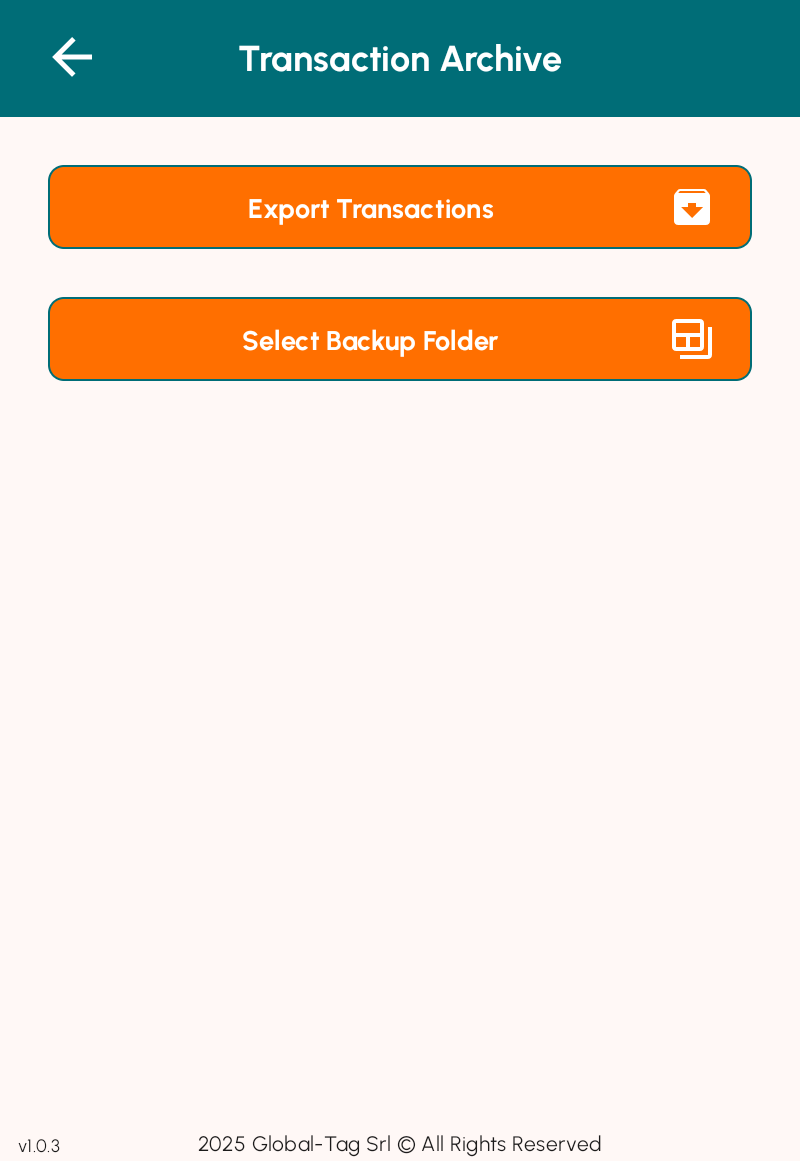
Check balances and local Archive; export ZIP+CSV manually or automatically.
On the device you can read a wristband’s balance and browse the local Archive of operations at any time. Every payment and top-up is stored on the handheld so the system keeps working even offline; nothing is streamed to the cloud until you choose to export or sync.
When you need the data, create a password-protected ZIP containing a clean CSV that’s ready for Excel and accounting. You can run this manually at any moment (end of shift, daily close), or enable auto-export every 15 minutes to your selected folder so a fresh copy is always available. If a backup path isn’t reachable, the device shows a clear warning so you can fix it on the spot.
For extra peace of mind, set a USB backup folder on a flash drive: the device saves locally, writes the backup, and—when connectivity is available—syncs to the dashboard for oversight, refunds, and reports. Best practice: keep auto-export on and do a quick closing export at the end of the day to capture the latest operations.
PAY-AT-END solution
Check-in – ADMIN & GUEST side
Issue and link a wristband; start a pay-at-end tab
At check-in, a wristband is issued (or reused) and linked via NFC to the guest’s account (room/table/ID) and to the current event/station. No funds are loaded now—the system opens a running tab for that wristband. From that moment, each tap simply adds the purchase to the tab with time-stamp and device info.
Pairing takes a second, includes a quick read test, and is saved locally on the device so you can keep operating even without network coverage; when connectivity returns, data syncs to the dashboard for oversight and reporting.
At any time you can view the current total or recent operations, replace a lost band by re-linking the account, and proceed to checkout with a single final payment. Clear on-screen prompts guide both staff and guest throughout.
Tap & Pay – Admin Side
Register each purchase with one tap; the wristband’s tab updates instantly
From the Tap & Pay screen, the operator sets the amount (quick presets or custom entry) and taps Confirm. The handheld switches to NFC listening and prompts for the wristband. When the tag is presented, the system validates the wristband, logs the purchase on the running tab (time-stamp, amount, device), and confirms the operation on screen.
Everything is saved locally so it works even without a connection; when connectivity is available, entries sync to the dashboard automatically. If the wristband is unreadable or the action is cancelled, the app shows a clear message and no charge is recorded. With presets tuned to your price list, the whole step takes seconds, keeping the line moving.
Tap & Pay – Guest Side
A quick tap to add the purchase; the total is always up to date
Control Credit – ADMIN & GUEST Side
One tap to know what’s left: transparent and quick.
Pay At End (Checkout) – ADMIN & GUEST Side
Review the final total, settle the tab, and close the wristband.
When the guest is ready to leave, open the tab summary, review the final total, and close the wristband. Settle the balance and generate the required receipt/statement for accounting. Once closed, the wristband can be collected or reassigned for the next guest/event.
Download, Sync & Control – ADMIN Side
Close, export, and stay in control — saved locally, ready for reports and accounting.
At the end of service, every payment and top-up is already stored locally on the device, so operations are safe even without a connection. When needed, run a one-tap export to generate a password-protected ZIP containing a clean CSV ready for Excel or your back office.
You can also enable auto-export so the device periodically writes a copy to the folder you choose (a dedicated USB drive is recommended).
As soon as connectivity is available, data syncs to the dashboard for oversight, refunds/adjustments, and reporting. If the backup folder can’t be reached, the device shows a clear alert so you can fix it immediately. Best practice: keep auto-export on and perform a quick closing export at the end of the day—this gives you the most up-to-date snapshot and a tidy archive for any audits.
BACKEND CONTROLLER
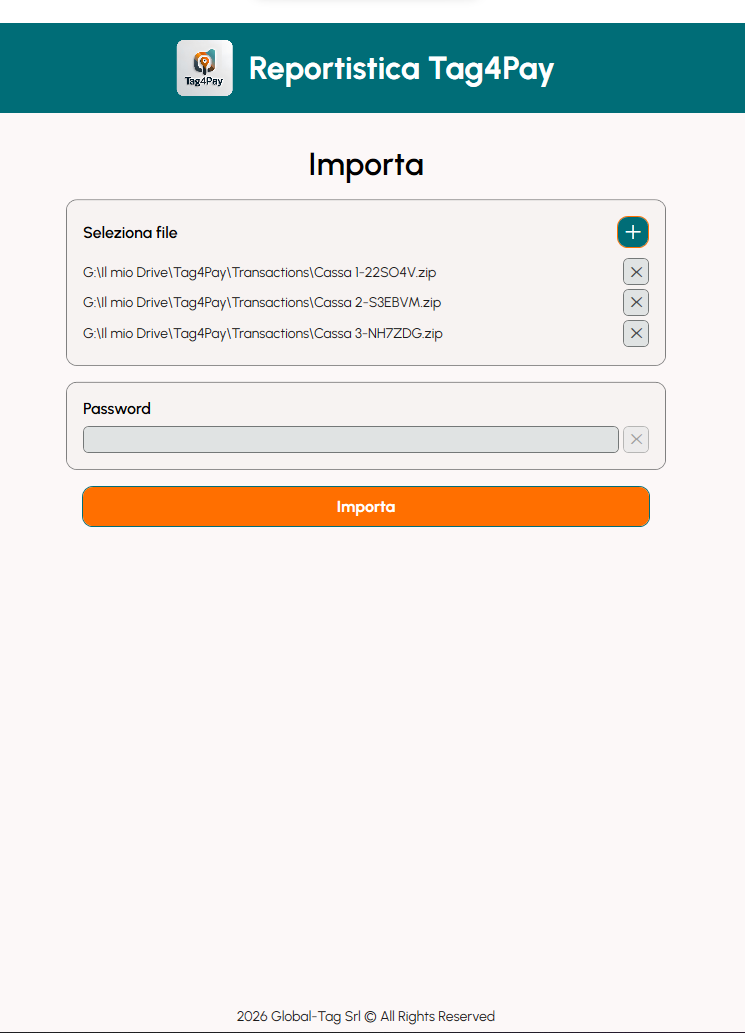
Tag4Pay Reporting
Import, monitor and analyze every transaction.
Dashboard
All your transaction data in one dashboard.
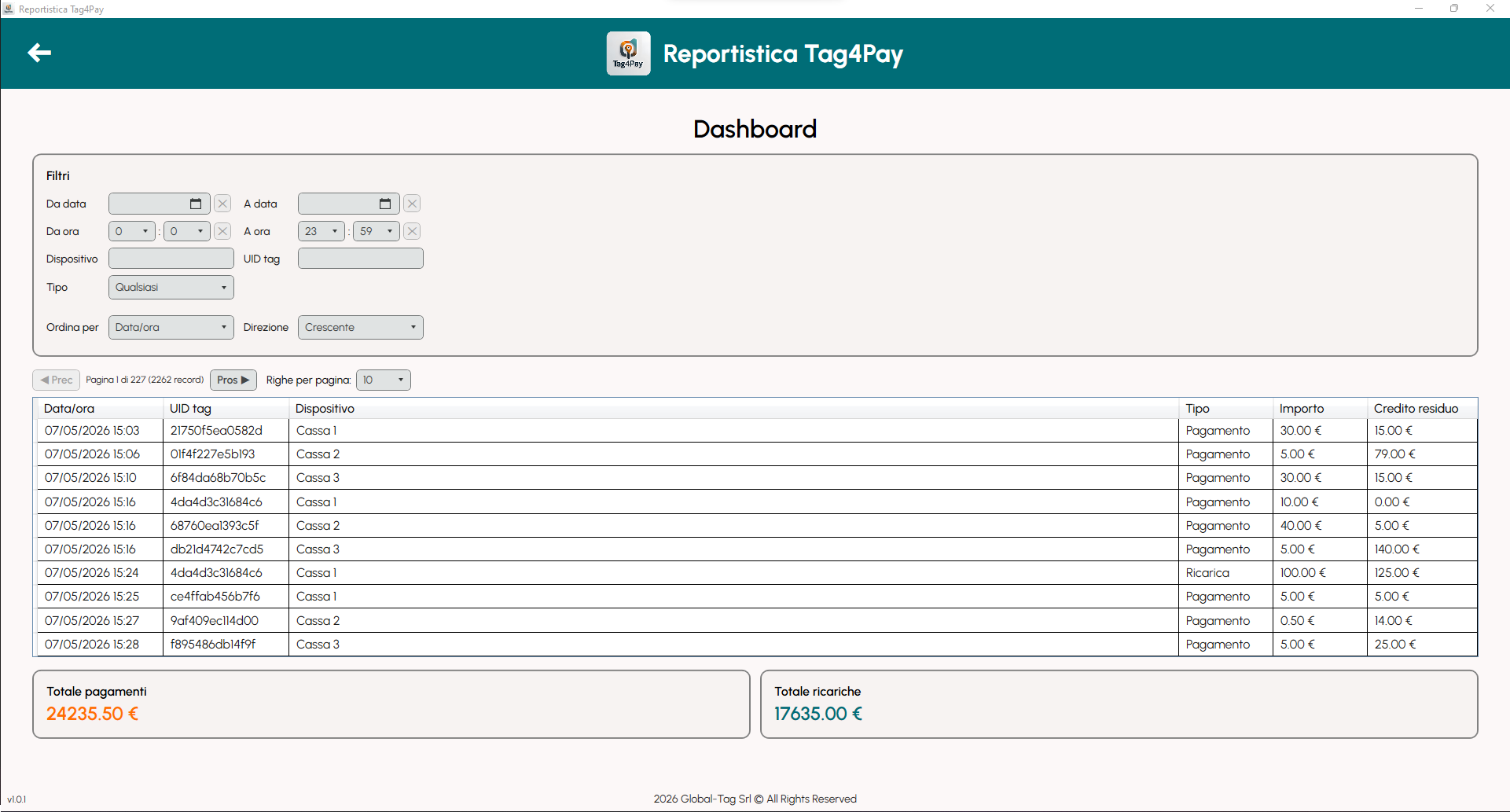
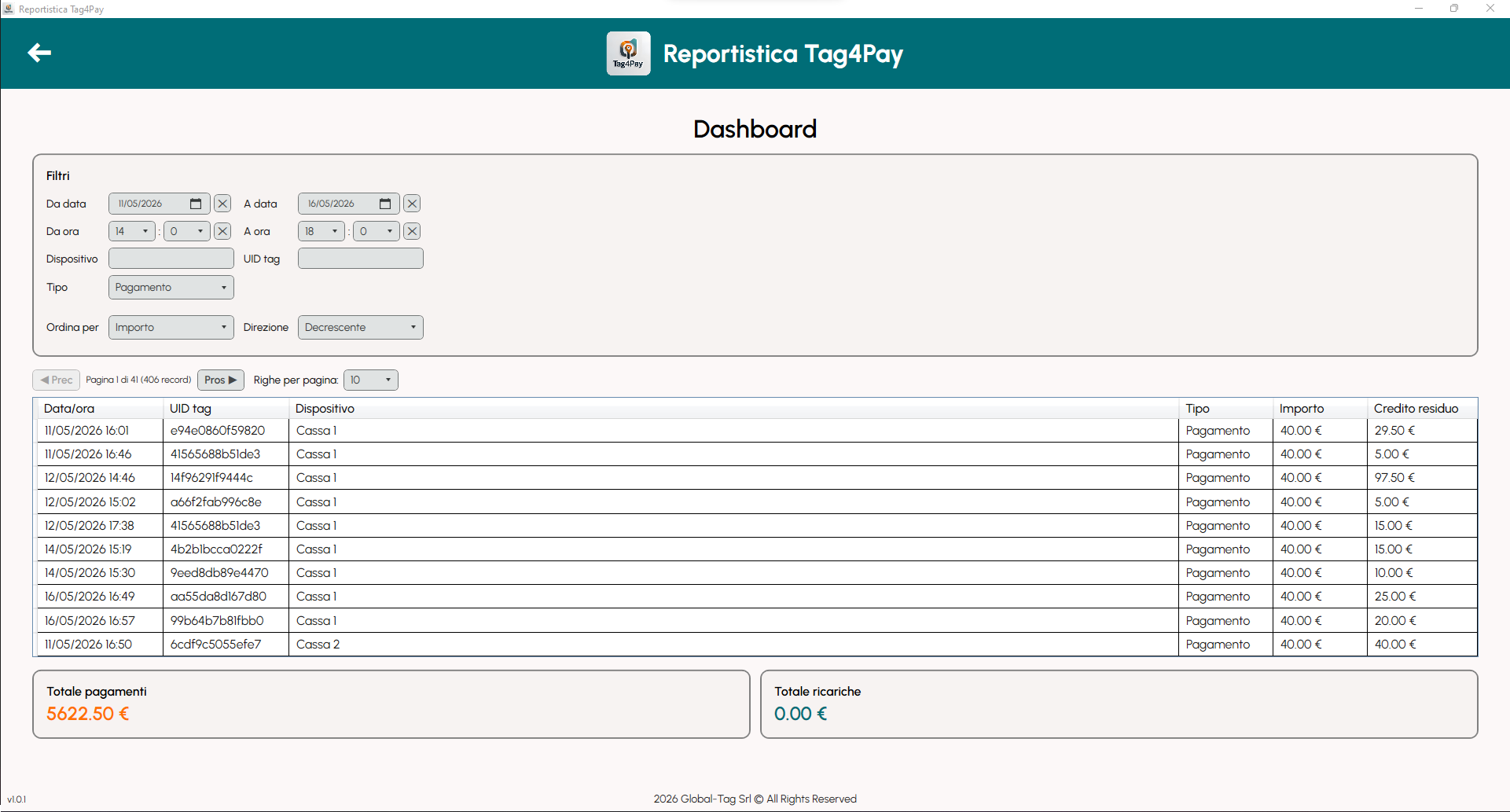
The dashboard collects all imported transactions in a single view, allowing users to filter and analyze data in real time.
Transactions can be searched by date, time, device, UID tag and operation type, while the integrated table provides a detailed overview of every movement registered by the system. Totals for payments and top-ups are automatically updated according to the selected filters, helping operators keep track of cashless activity with clarity and precision.
The interface has been designed to offer fast navigation, immediate access to exported data and a smooth reporting workflow, even during high-volume events or multi-day operations.
Video Tutorial
Learn how to synchronize Tag4Pay data with Google Drive and securely access your transaction files from your computer. These two tutorials guide you through the complete synchronization process.